2026. 6. 5. 17:48ㆍAI/LLM
이번에 실습으로 만들어 볼 웹 애플리케이션은 감정 분석 애플리케이션이다.
앞서 허깅 페이스 Transformer로 할 수 있는 기능 중에 감정 분석이 있었는데
그것을 애플리케이션화 한다고 보면 된다.
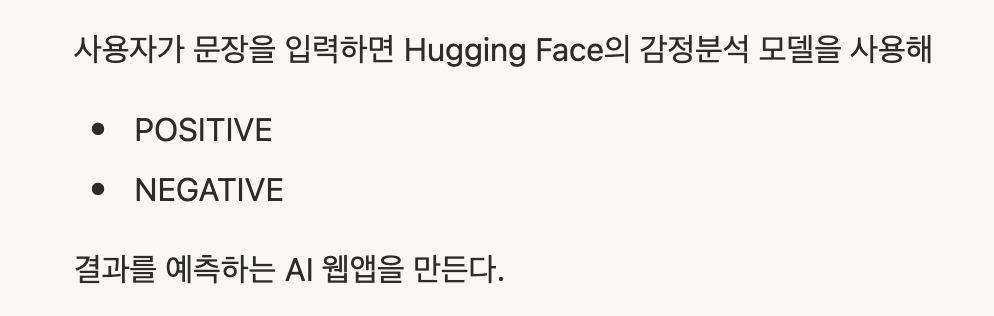
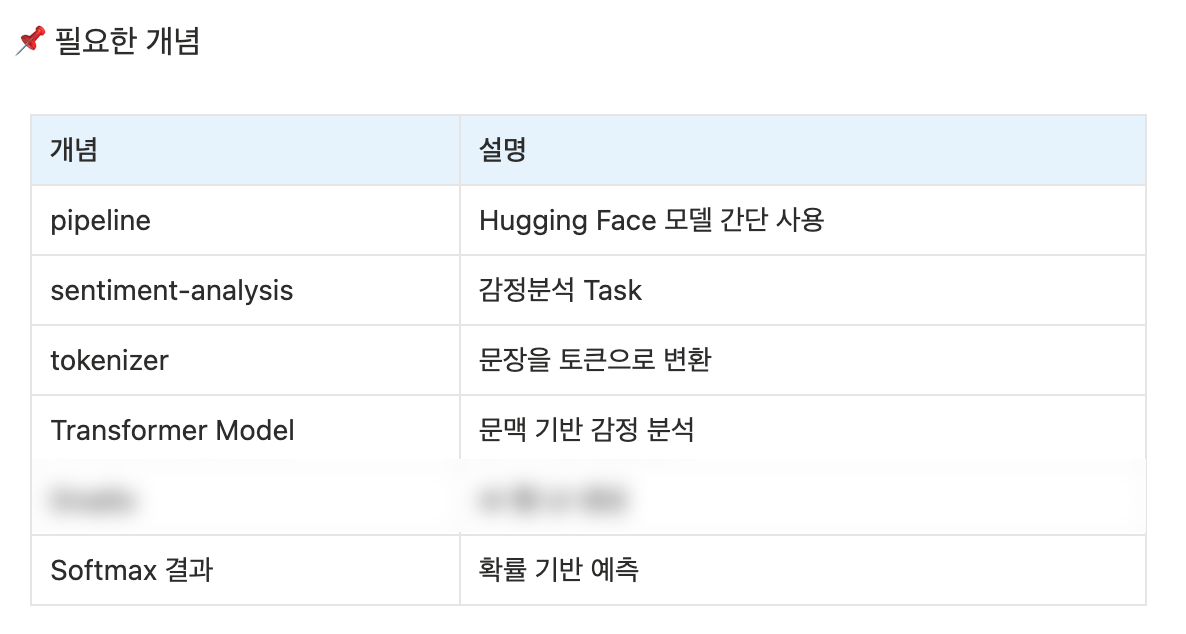
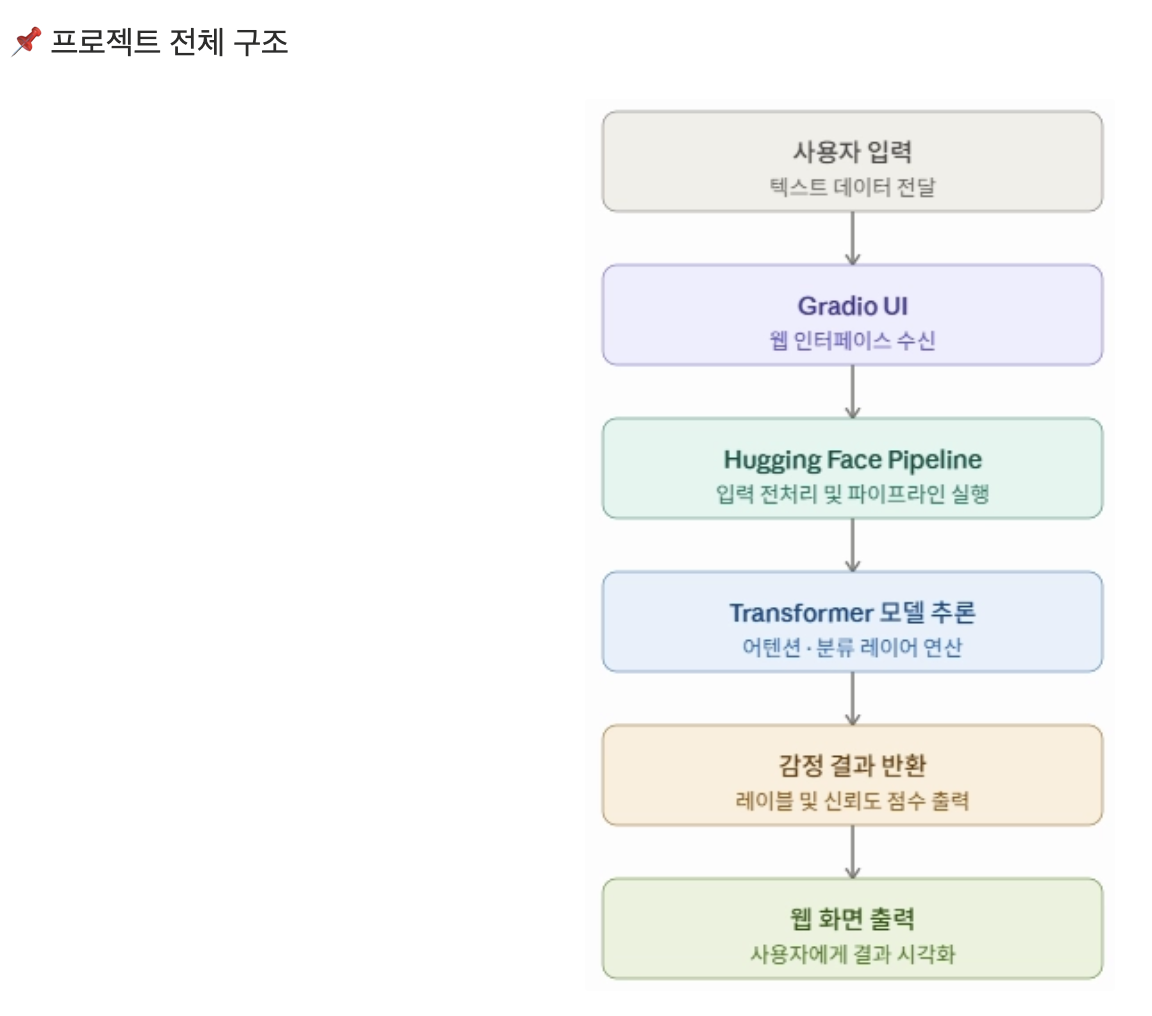
총 6단계에 걸쳐 UI를 구현할 예정인데
먼저 1단계는 텍스트 인풋을 통해 감정과 확률을 아웃풋으로 받는 형태이다.
1단계 : 영어 문장
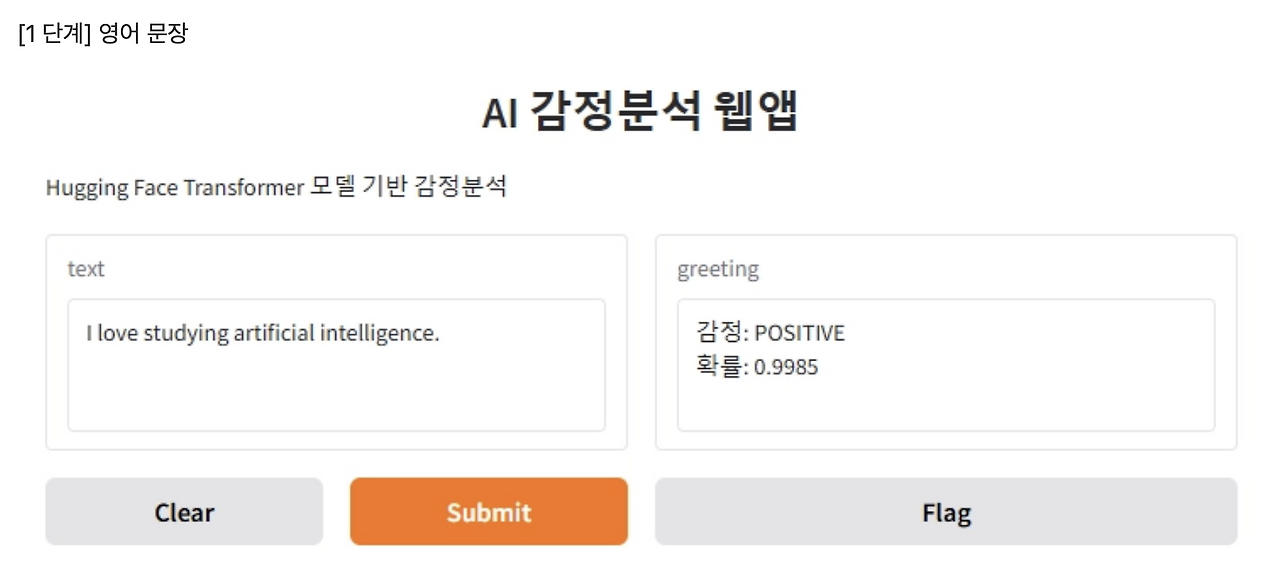
다음과 같은 Next.js 코드로 화면단(프론트엔드) 먼저 구현한다.
app/emotion/page.tsx
"use client";

import { useState } from "react";
import PutColumn from "@/components/PutColumn";


export default function EmotionPage() {
    const putArray = [
        {
            ele: 'input',
            label: 'text'
        },
        {
            ele: 'output',
            label: 'greeting'
        }
    ]

    const [inputValue, setInputValue] = useState<string>("");
    const [outputValue, setOutputValue] = useState<string>("");

    const inputChange = (e: React.ChangeEvent<HTMLTextAreaElement>) => {
        setInputValue(e.target.value)
    }

    const outputChange = (data: string) => {
        setOutputValue(data)
    }


    const handleClear = () => {
        setInputValue("");
        setOutputValue("");
    }

    return (
        <main>
            <div id="wrap" className="w-[1080px] mx-auto">
                <h2 className="text-center mb-[30px]">AI 감정 분석 웹앱</h2>
                <p className="text-[14px] mb-[16px]">
                    Hugging Face Transformer 모델 기반 감정 분석
                </p>
                <div className="put__rc grid grid-cols-2 gap-[10px]">
                    {putArray.map((e, i) => (
                        <PutColumn
                            key={i}
                            ele={e.ele}
                            label={e.label}
                            value={e.ele === 'input' ? inputValue : outputValue}
                            onChange={e.ele === 'input' ? inputChange : outputChange}
                            onClear={e.ele === 'input' ? handleClear : undefined}
                        />
                    ))}
                </div>
            </div>
        </main>
    )
}
src/components/PutColumn.tsx
import { cn } from "@/lib/cn";
import PutBox from "./PutBox";

interface PutColumnProps {
    ele: string;
    label: string;
    value: string;
    onChange?: ((e: React.ChangeEvent<HTMLTextAreaElement>) => void) | ((data: string) => void);
    onClear?: () => void;
}

export default function PutColumn({
    ele,
    label,
    value,
    onChange,
    onClear,
}: PutColumnProps) {
    return (
        <div className={cn("put__column__" + ele)}>
            <PutBox textColor={"#8c8e99"} label={label} ele={ele} value={value} onChange={onChange} />
            {ele === "output" ? (
                <button className="w-full font-[600] py-[10px] bg-[#e4e4e6] rounded-[5px] cursor-pointer">
                    Flag
                </button>
            ) : (
                <div className="buttons flex gap-[10px]">
                    <button
                        className="flex-1 font-[600] py-[10px] bg-[#f87315] text-[#fff] rounded-[5px] cursor-pointer disabled:opacity-45"
                        disabled={!value.trim()}
                    >
                        Submit
                    </button>
                    <button
                        className="flex-1 font-[600] py-[10px] bg-[#e4e4e6] rounded-[5px] cursor-pointer"
                        onClick={onClear}
                    >
                        Clear
                    </button>
                </div>
            )}
        </div>
    );
}
src/components/PutBox.tsx
export default function PutBox({
    label,
    ele,
    value,
    onChange,
    textColor
}: {
    label: string;
    ele: string;
    value: string | number[];
    onChange?: ((e: React.ChangeEvent<HTMLTextAreaElement>) => void) | ((data: string) => void);
    textColor?: string;
}) {

    return (
        <div className="put__box p-[14px] border border-[#e7e7e9] rounded-[5px] mb-[30px]">
            <h2 className="text-[14px] font-[700] mb-[8px]" style={{ color: `${textColor}` }}>{label}</h2>
            {
                ele === 'input' ?
                    <textarea
                        className="resize-none w-full block box-border h-[200px] p-[14px] border border-[#e7e7e9] outline-none rounded-[5px]"
                        value={value as string}
                        onChange={(e) => {
                            if (onChange) {
                                (onChange as (e: React.ChangeEvent<HTMLTextAreaElement>) => void)(e);
                            }
                        }}
                    />
                    :
                    <div className="p-[14px] h-[200px] border border-[#e7e7e9] rounded-[5px] box-border">
                    </div>
            }
        </div>
    )
}
다음 코드 실행 시 아래와 같은 UI가 도출될 것이다.
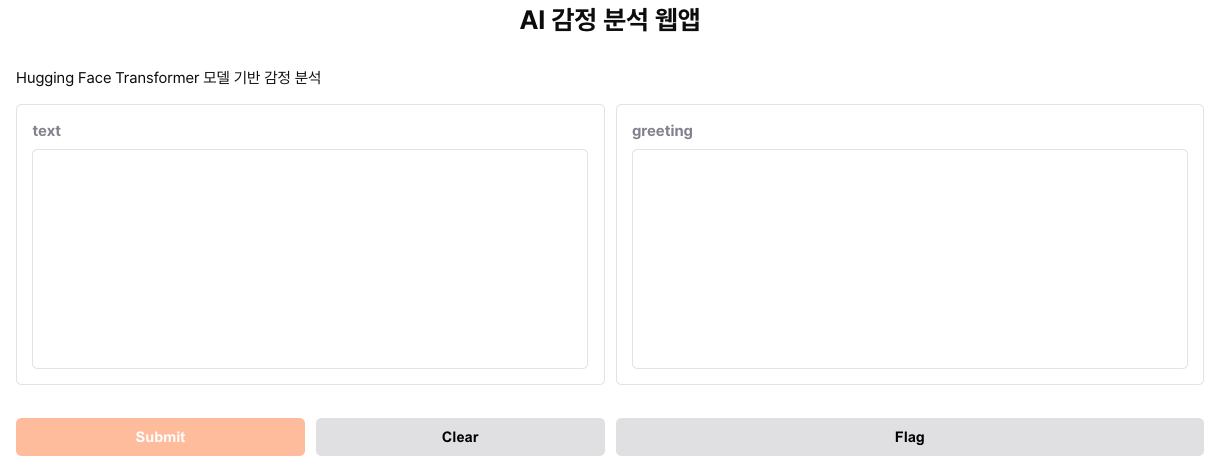
중요한건 AI 기능이므로 프론트엔드 코드에 대한 자세한 설명은 넘어가도록 하겠다.
여기서 FastAPI 엔드포인트를 구축하여, 입력한 텍스트를 받아 LLM을 통해
감정의 긍/부정 여부 및 긍/부정 확률을 도출하는 간단한 앱을 구성할 것이다.
먼저, Transformer의 pipeline을 가져와 sentiment-analysis 태스크를 가져오자.
analyzer = pipeline("sentiment-analysis")
이 함수 변수를 input_text (단, 반드시 한 문장이어야 한다)에 적용시켜 결과값을 리턴하면 된다.
@router.post("/sentiment-analysis", summary="Analyze text sentiment")
async def get_sentiment(input_text: str):
    result = analyzer(input_text)
    return {"result": result}
이제 간단한 API 구축에 성공했으니, 프론트엔드와 연결시켜보자.
app/emotion/page.tsx 에서 handleSubmit 함수를 추가할 것이다.
const handleSubmit = async () => {
        try {
            const response = await fetch(`http://localhost:8000/api/v1/sentiment-analysis?input_text=${inputValue}`, {
                method: "POST",
            })
            const json = await response.json()
            console.log(json)
        } catch (error) {
            console.error(error)
        }
 }
이 코드를 통해 콘솔에 출력된 결과값은 아래와 같다.
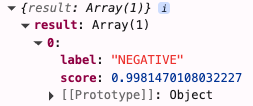
올바로 응답값이 내려왔으므로, 이 응답값을 상태값으로 저장 후
greeting UI에 형식대로 출력하도록 하면 되겠다.
setOutputValue(`감정:${json.result[0].label}|확률:${json.result[0].score}`)
그리고 src/components/PutBox.tsx 에서 아래와 같이 처리한다.
<div className="p-[14px] h-[200px] border border-[#e7e7e9] rounded-[5px] box-border overflow-auto">
      {(value as string).split("|").map((e, i) => (
           <p key={i} className="leading-[1.6]">{e}</p>
      ))}
</div>

여기서 보여주는 감정과 확률 수치는 가장 높은 확률이 나온 것을 분석해서 보여주는 것이다.
즉 이 상황에서는 Negative일 확률이 99%, 나머지일 확률이 1%이므로
Negative, 99%를 보여주는 것이다.
2단계 : 영어 + 한국어 지원

한국어로 입력했을 때 분석해주는 한국어 인공지능 모델들을 살펴보자.
한국어로 처리하도록 개선하는 데에는 여러가지 방법이 있을 것이다.
물론 한국어 모델을 찾는 방법도 있겠지만,
번역 모델을 중간에 미들웨어처럼 끼워 넣을 수도 있다.
그 번역 모델을 통해 한국어를 영어로 번역 후
그것을 분석해달라고 요청할 수도 있다.
일단 실습에서는 간단한 한국어 모델을 사용하는 쪽으로 구성을 잡도록 하자.
한국어 모델을 3가지 정도 테스트해보도록 할 예정이다.
(감정 분석이 가능한 한국어 모델 3가지를 가져와봤다)
1) WhitePeak/bert-base-cased-Korean-sentiment
다음과 같이 모델명을 지정해보자. 그리고 바로 화면단에서 테스트해보면 된다.
analyzer = pipeline(
    "sentiment-analysis", model="WhitePeak/bert-base-cased-Korean-sentiment"
)
감정 부분 데이터가 우리가 아는 형식과 다르게 나오므로,
Negative / Postive / Neutral 형식으로 맵핑할 필요성이 있겠다.
model_map = {
    "LABEL_0": "NEGATIVE",
    "LABEL_1": "POSITIVE",
    "LABEL_2": "NEUTRAL",
}

def normalize_label(label: str) -> str:
    """Normalize sentiment label to standard format"""
    return model_map.get(label, label)

@router.post("/sentiment-analysis", summary="Analyze text sentiment")
async def get_sentiment(input_text: str):
    result = analyzer(input_text)

    result[0]["label"] = normalize_label(result[0]["label"])

    return {"result": result}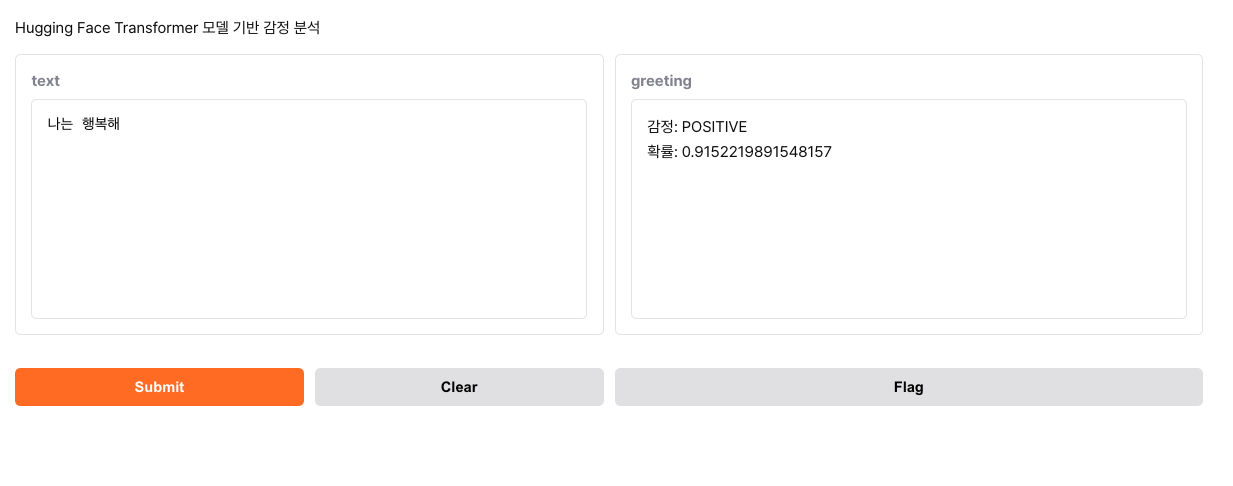
2) snunlp/KR-FinBert-SC
analyzer = pipeline(
    "sentiment-analysis", model="snunlp/KR-FinBert-SC"
)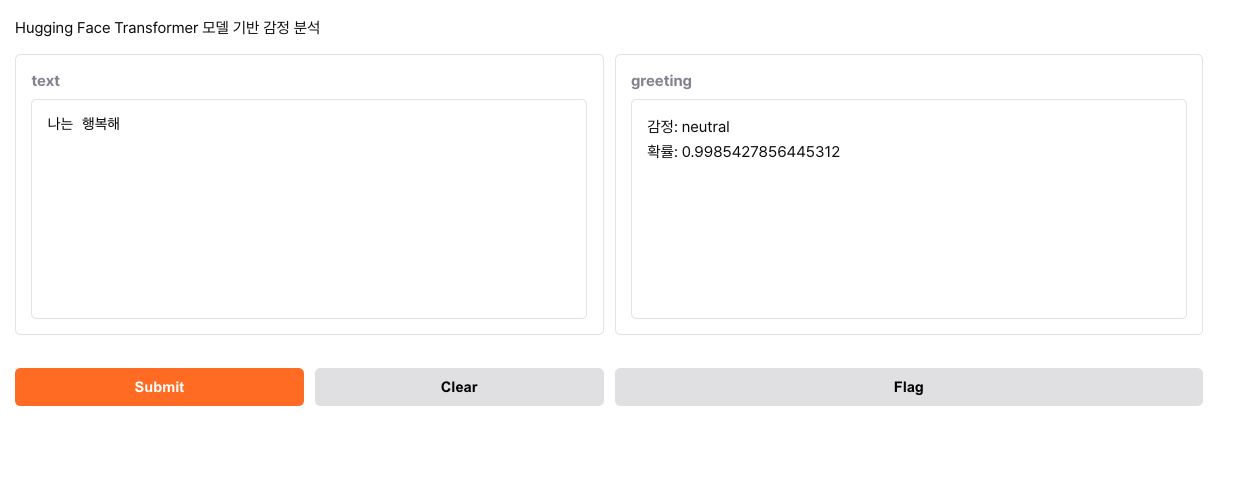
기존 형식도 맵핑 딕셔너리에 키-속성으로 추가 후 테스트 해봤다.
이번에는 결과가 우리가 원하던 형식으로 잘 나오는 것 같으나, 분석 정확도는 첫번째 모델보다는 아닌 것 같다.
일단 우선순위를 뒤로 미뤄놓고 생각해보자.
3) nlptown/bert-base-multilingual-uncased-sentiment
확인해보면 알겠지만, 이 모델도 label 결과값이 우리가 원하는 형식과 다르므로,
label_map 딕셔너리에 형식을 추가해줄 것이다.
analyzer = pipeline(
    "sentiment-analysis", model="nlptown/bert-base-multilingual-uncased-sentiment"
)

model_map = {
    "LABEL_0": "NEGATIVE",
    "LABEL_1": "POSITIVE",
    "LABEL_2": "NEUTRAL",
    "NEGATIVE": "NEGATIVE",
    "POSITIVE": "POSITIVE",
    "NEUTRAL": "NEUTRAL",
    "1 star": "NEGATIVE",
    "2 stars": "NEGATIVE",
    "3 stars": "NEUTRAL",
    "4 stars": "POSITIVE",
    "5 stars": "POSITIVE",
}


def normalize_label(label: str) -> str:
    """Normalize sentiment label to standard format"""
    return model_map.get(label, label)


@router.post("/sentiment-analysis", summary="Analyze text sentiment")
async def get_sentiment(input_text: str):
    result = analyzer(input_text)

    result[0]["label"] = normalize_label(result[0]["label"])

    return {"result": result}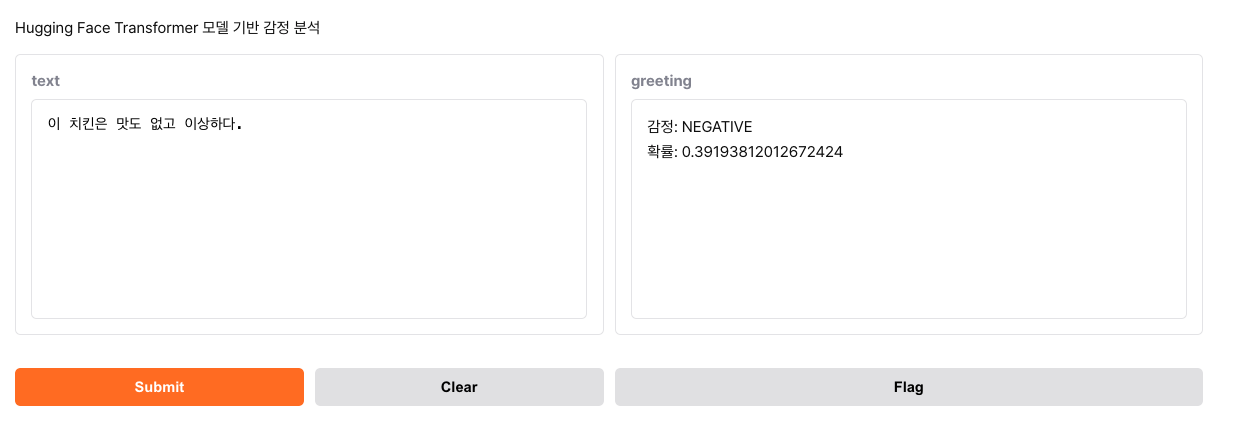
최종적으로 이런 테스트를 통해 어떤 모델이 감정 분석에 효율적인지 찾는 과정을 거쳐야 한다.
필자는 WhitePeak/bert-base-cased-Korean-sentiment 모델을 사용하도록 하겠다.
3단계: 감정 시각화

위와 같이, 감정 분석한 것을 시각화하는 과정을 거치겠다.
Output 부분 화면단을 만들어야 하므로, Next.js를 사용하여 만들었다.
app/emotion_visual/page.tsx
"use client";

import OutputColumn from "@/components/OutputColumn";
import PutColumn from "@/components/PutColumn";
import { useState } from "react";

export interface Output {
    model_lang: string;
    result: Result[];
}

interface Result {
    label: string;
    score: number;
}

export default function EmotionVisualPage() {
    const [inputValue, setInputValue] = useState<string>("");
    const [isSubmitting, setIsSubmitting] = useState<boolean>(false)
    const [outputValue, setOutputValue] = useState<Output | null>(null)

    const inputChange = (e: React.ChangeEvent<HTMLTextAreaElement>) => {
        setInputValue(e.target.value)
    }

    const inputClear = () => {
        setInputValue("");
    }

    const inputSubmit = async () => {
        try {
            setIsSubmitting(true);
            const response = await fetch(`http://localhost:8000/api/v1/sentiment-analysis?input_text=${inputValue}`, {
                method: "POST"
            })
            const json = await response.json()
            setOutputValue(json)
        } catch (error) {
            console.log(error)
        } finally {
            setIsSubmitting(false);
        }
    }

    return (
        <main>
            <div id="wrap" className="w-[1080px] mx-auto">
                <h2 className="text-center mb-[30px]">AI 감정 분석 웹앱</h2>
                <p className="text-[14px] mb-[16px]">
                    Hugging Face Transformer 모델 기반 감정 분석
                </p>
                <div className="put__rc grid grid-cols-2 gap-[10px]">
                    <PutColumn ele="input" label="text" value={inputValue} onSubmit={inputSubmit} onChange={inputChange} onClear={inputClear} isSubmitting={isSubmitting} />
                    <OutputColumn output={outputValue} />
                </div>
            </div>
        </main>
    )
}
src/components/OutputColumn.tsx
import { Output } from "@/app/emotion_visual/page";
import { VscOutput } from "react-icons/vsc";
import OutputBar from "./OutputBar";

export default function OutputColumn({ output }: { output: Output | null }) {
    return (
        <div className="new__output w-full">
            <div id="outputArea" className="w-full border border-[#e7e7e9] rounded-[5px] overflow-auto flex flex-col">
                <div id="outputAreaTitle" className="w-[80px] h-[30px] border-r border-b border-[#e7e7e9] flex justify-center items-center gap-[6px]">
                    <VscOutput size={14} />
                    <span className="text-[12px]">Output</span>
                </div>
                {output ? (
                    <div id="output" className="flex flex-col pb-[50px]">
                        <h2 className="text-[19px] text-center mb-[20px]">{output.result[0].label}</h2>
                        <OutputBar current={[output.result[0].label, output.result[0].score]} />
                        <OutputBar current={["others", 1 - output.result[0].score]} />
                    </div>
                ) : (
                    <div id="output" className="flex flex-col pb-[50px]">
                        <h2 className="text-[19px] text-center mb-[20px]">No output</h2>
                    </div>
                )}
            </div>
            <button className="w-full font-[600] py-[10px] bg-[#e4e4e6] rounded-[5px] cursor-pointer mt-[30px]">
                Flag
            </button>
        </div>
    )
}
src/components/OutputBar.tsx
export default function OutputBar({ current }: { current: any[] }) {
    return (
        <div className="bar__container mb-[10px] self-center w-[90%]">
            <div className="bar h-[6px] rounded-[6px]" style={{ width: `${Math.floor(current[1] * 100)}%`, backgroundImage: `linear-gradient(to right,#f39b4b,#fadcb1)` }}></div>
            <div className="info w-full flex justify-between items-center">
                <span className="text-[14px]">{current[0]}</span>
                <span className="text-[14px]">{Math.floor(current[1] * 100)}%</span>
            </div>
        </div>
    )
}
여기서 json 데이터 기반으로 현재 감정과 반대 감정을 동시에 보내서 표현해주면 끝이다.
4단계: 다중 문장 감정 분석

그 동안 하나의 문장으로 분석한 결과를 알려주는 앱을 만들었다.
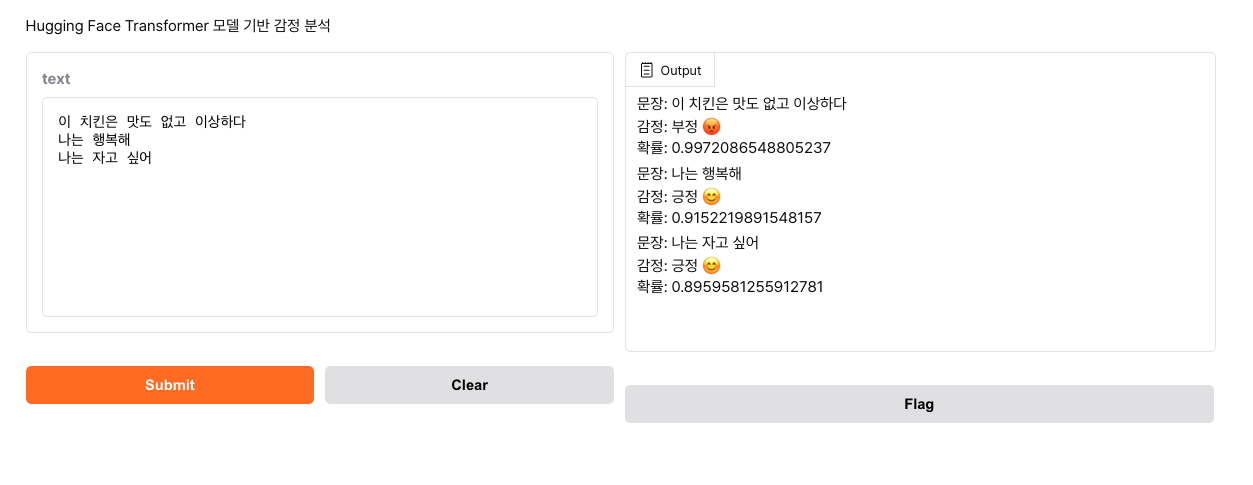
이번에는 여러 문장을 넣어서, 한 문장씩 결과를 알려주는 앱을 만들어 보고 싶다.
먼저 여러 문장을 받아서 리스트로 처리해야 하는데, 여기서 splitlines() 메소드를 사용해보자.
@router.post("/multi-sentiment", summary="multi-sentiment")
async def post_multi_sentiment(data: TextInput):
    # 리스트로 분리
    input_lists = input_text.splitlines()

위와 같은 상태로 분리되므로 우리가 원한 결과가 나왔다고 할 수 있겠다.
추가로 여백이 존재할 수도 있으므로 strip() 처리를 추가적으로 해 줄 필요는 있다.
# 여백 처리
sentences = [s.strip() for s in input_lists if s.strip()]
이제 각각 for를 돌면서 각 문장마다 결과값을 보내주어야 할 것 같다.
@router.post("/multi-sentiment", summary="multi-sentiment")
async def post_multi_sentiment(data: TextInput):

    results_text = []
    input_text = data.input_text

    # 리스트로 분리
    input_lists = input_text.splitlines()

    # 여백 처리
    sentences = [s.strip() for s in input_lists if s.strip()]

    # 각 문장별로 개별 분석
    analyzer = korean_analyzer if is_korean(input_text) else english_analyzer

    for sentence in sentences:
        result = analyzer(sentence)
        # result: [{"label": "LABEL_0", "score": 0.999}]
        best = result[0]
        label = best["label"]
        label = normalize_label(label)
        score = best["score"]

        results_text.append({"text": sentence, "label": label, "score": score})

    return results_text
프론트엔드에서 이 결과값을 map 메소드로 돌려주면 끝일 것 같다.
{outputs!.length > 0 ? (
                    <div id="output" className="flex flex-col pb-[50px]">
                        {
                            outputs!.map((out, idx) => (
                                <div key={idx} className="flex flex-col pt-[6px] px-[10px]">
                                    <p className="text-[14px]">문장: {out.text}</p>
                                    <p className="text-[14px]">감정: {out.label}</p>
                                    <p className="text-[14px]">확률: {out.score}</p>
                                </div>
                            ))
                        }
                    </div>
                ) : (
                    <div id="output" className="flex flex-col pb-[50px]">
                        <h2 className="text-[19px] text-center mb-[20px]">No output</h2>
                    </div>
                )}
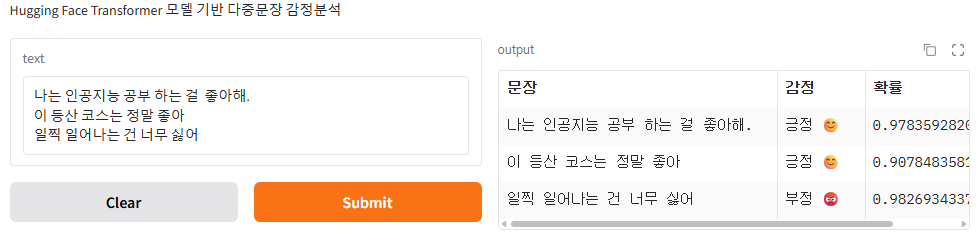
추가로, Output UI를 데이터프레임(테이블) 형태로 구현해보자.
{outputs!.length > 0 ? (
                    <div id="output" className="flex flex-col pb-[50px] pt-[20px] px-[20px]">
                        <table className="border-collapse border border-[#e7e7e7]">
                            <thead>
                                <tr>
                                    <th className="border border-[#e7e7e7] pl-[10px] py-[8px] text-left">문장</th>
                                    <th className="border border-[#e7e7e7] pl-[10px] py-[8px] text-left">감정</th>
                                    <th className="border border-[#e7e7e7] pl-[10px] py-[8px] text-left">확률</th>
                                </tr>
                            </thead>
                            <tbody>
                                {
                                    outputs?.map((output: Outputs, index: number) => (
                                        <tr key={index}>
                                            <td className="border border-[#e7e7e7] pl-[10px] py-[8px]">{output.text}</td>
                                            <td className="border border-[#e7e7e7] pl-[10px] py-[8px]">{output.label}</td>
                                            <td className="border border-[#e7e7e7] pl-[10px] py-[8px]">{output.score}</td>
                                        </tr>
                                    ))
                                }
                            </tbody>
                        </table>
                    </div>
                ) : (
                    <div id="output" className="flex flex-col pb-[50px]">
                        <h2 className="text-[19px] text-center mb-[20px]">No output</h2>
                    </div>
                )}
5단계 : csv 파일 업로드 + 통계
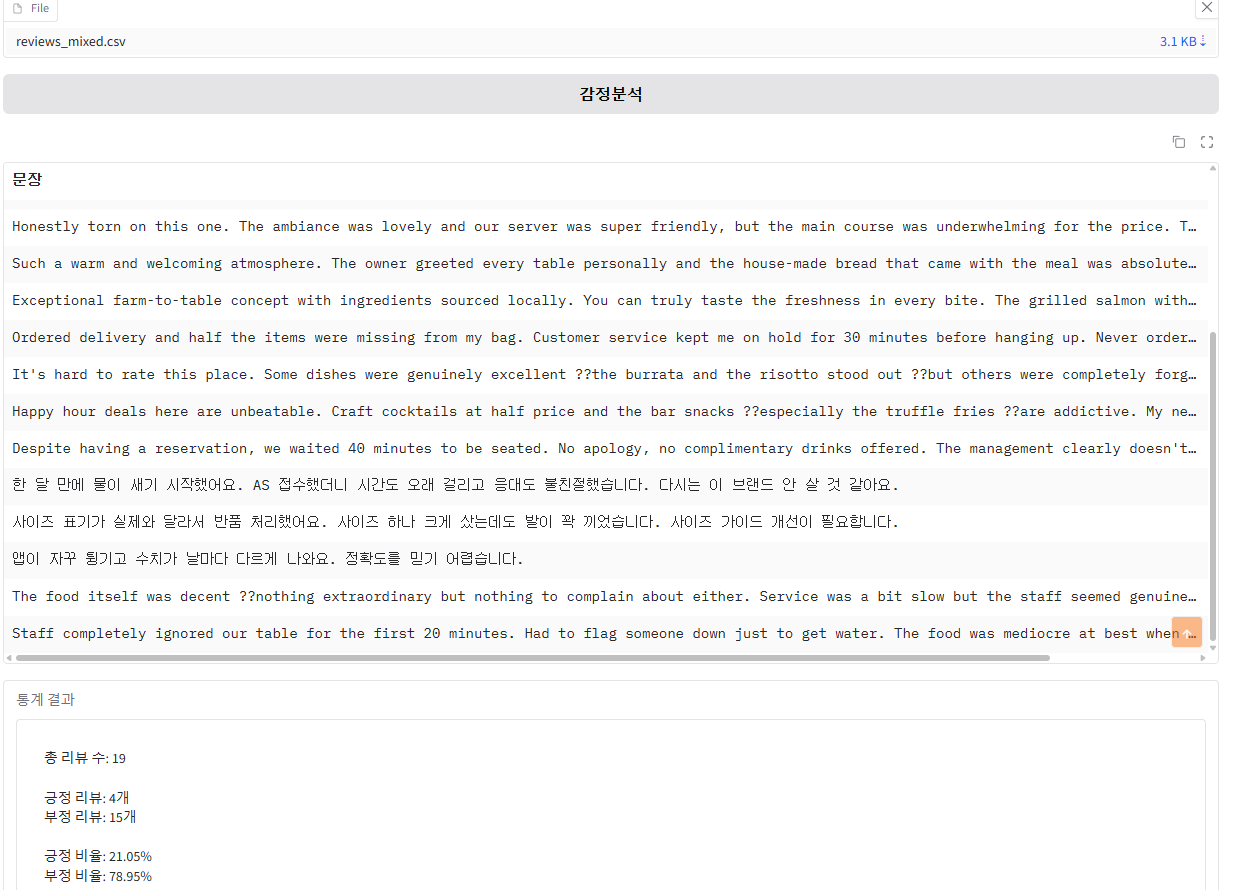
이제는 파일로 데이터 분석을 실행해보자.
새로운 UI로 사용자에게 보여줄 예정이므로, 프론트엔드 코드를 다시 만들어보자.
Next.js 코드는 다음과 같다.
app/emotion_csv/page.tsx
"use client";

import { useState } from 'react';
import CsvResults from "@/components/CsvResults";
import FileAnalysis from "@/components/FileAnalysis";
import CsvOutputs from '@/components/CsvOutputs';

export interface AnalyzedData {
    all_reviews: number;
    positive_reviews: number;
    neutral_reviews: number;
    negative_reviews: number;
    positive_rate: number;
    neutral_rate: number;
    negative_rate: number;
}

export default function EmotionCsvPage() {
    const [results, setResults] = useState<string[]>([]);
    const [analyzedData, setAnalyzedData] = useState<AnalyzedData | null>(null);

    const changeResults = (data: string[]) => {
        setResults(data);
    }

    const changeAnalyzedData = (data: AnalyzedData) => {
        setAnalyzedData(data);
    }

    return (
        <main>
            <div id="wrap" className="w-[1080px] mx-auto">
                <h2 className="text-center mb-[30px]">AI 감정 분석 웹앱</h2>
                <p className="text-[14px] mb-[16px]">
                    Hugging Face Transformer 모델 기반 감정 분석
                </p>
                <FileAnalysis changeResults={changeResults} changeAnalyzedData={changeAnalyzedData} />
                <CsvResults results={results} />
                <CsvOutputs analyzedData={analyzedData} />
            </div>
        </main>
    )
}
src/components/CsvResults.tsx
import { cn } from "@/lib/cn";

export default function CsvResults({ results }: { results: string[] }) {
    return (
        <div id="csvResults" className="mt-[60px] w-full h-[400px] border border-[#e6e6e8] rounded-[8px] overflow-hidden flex flex-col">
            <h2 className="pl-[6px] pt-[8px] pb-[10px] h-[15px] bg-[#fff] border-b-[10px] border-[#e6e6e8] text-[14px] font-[500]">문장</h2>
            <div className={cn("flex-1 overflow-y-scroll flex flex-col", results.length == 0 && "justify-center items-center")}>
                {results.length > 0 ? results.map((result: string, index: number) => <p key={index} className={cn("px-[6px] text-[14px] py-[10px]", index % 2 === 1 ? "bg-[#fafafa]" : "bg-[#fff]")}>{result}</p>) : <p className="text-[14px]">파일이 비어있습니다.</p>}
            </div>
        </div>
    )
}
src/components/CsvOutputs.tsx
import { AnalyzedData } from "@/app/emotion_csv/page";

export default function CsvOutputs({ analyzedData }: { analyzedData: AnalyzedData | null }) {
    return (
        <div id="csvOutputs" className="w-full h-[200px] border border-[#e6e6e8] rounded-[6px] mt-[40px] p-[10px] flex flex-col">
            <h2 className="text-[14px] font-[500] mb-[20px] h-[20px] flex items-center">통계 결과</h2>
            {analyzedData ? (
                <div id="csvOutputsBox" className="w-full h-[140px] overflow-y-auto border border-[#e6e6e8] rounded-[6px] p-[10px] box-border flex-1 py-[30px] px-[20px]">
                    <p className="text-[14px]">
                        총 리뷰 수 : {analyzedData.all_reviews} <br />
                        <br />
                        긍정 리뷰 : {analyzedData.positive_reviews} 개 <br />
                        부정 리뷰 : {analyzedData.negative_reviews} 개 <br />
                        중립 리뷰 : {analyzedData.neutral_reviews}
                        <br />
                        <br />
                        긍정 비율 : {analyzedData.positive_rate} % <br />
                        부정 비율 : {analyzedData.negative_rate} % <br />
                        중립 비율 : {analyzedData.neutral_rate} %
                    </p>
                </div>
            ) : (
                <div id="csvOutputsBox" className="w-full h-[140px] border border-[#e6e6e8] rounded-[6px] p-[10px] box-border flex-1 flex flex-col justify-center items-center">
                    <p className="text-[14px]">감정분석을 실행해주세요.</p>
                </div>
            )}
        </div>
    )
}
FastAPI 코드는 아래와 같다.
@router.post("/csv_result", summary="result of csv")
async def post_csv_result(data: CsvInput):
    csv_array = []

    file_path = data.input_path.replace("http://localhost:8000", "").lstrip("/")

    # 프로젝트 루트 기준 전체 경로로 변환
    project_root = Path(__file__).parent.parent.parent.parent.parent
    full_path = project_root / file_path

    # csv 파일 다루기
    with open(full_path, "r", encoding="utf-8") as f:
        reader = pd.read_csv(f)
        for r in reader["review"]:
            csv_array.append(r)
        return {"data": csv_array}


@router.post("/csv_chart", summary="chart of csv")
async def post_csv_chart(data: CsvInput):
    file_path = data.input_path.replace("http://localhost:8000", "").lstrip("/")

    project_root = Path(__file__).parent.parent.parent.parent.parent
    full_path = project_root / file_path

    pd_result = pd.read_csv(full_path)
    pd_list = pd_result["review"].to_list()

    # 총 리뷰 수
    all_reviews = len(pd_list)

    # 긍정 리뷰 수
    positive_reviews = 0
    # 중립 리뷰 수
    neutral_reviews = 0
    # 부정 리뷰 수
    negative_reviews = 0

    # 긍정 비율
    positive_rate = 0
    # 중립 비율
    neutral_rate = 0
    # 부정 비율
    negative_rate = 0

    for sentence in pd_list:
        if is_korean(sentence):
            new_result = korean_analyzer(sentence)
        else:
            new_result = english_analyzer(sentence)

        if normalize_label(new_result[0]["label"]) == "긍정 😊":
            positive_reviews += 1
        elif normalize_label(new_result[0]["label"]) == "중립 😐":
            neutral_reviews += 1
        elif normalize_label(new_result[0]["label"]) == "부정 😡":
            negative_reviews += 1

    positive_rate = round(positive_reviews / all_reviews * 100, 4)
    neutral_rate = round(neutral_reviews / all_reviews * 100, 4)
    negative_rate = round(negative_reviews / all_reviews * 100, 4)

    return {
        "all_reviews": all_reviews,
        "positive_reviews": positive_reviews,
        "neutral_reviews": neutral_reviews,
        "negative_reviews": negative_reviews,
        "positive_rate": positive_rate,
        "neutral_rate": neutral_rate,
        "negative_rate": negative_rate,
    }

밑에 있는 통계 결과를 추가로 차트 형식으로 변경해보자.
recharts 라이브러리를 이용하여 아래와 같이 변경하면 될 것 같다.
'use client';

import { AnalyzedData } from "@/app/emotion_csv/page";
import { PieChart, Pie, Cell, Legend, Tooltip, ResponsiveContainer } from "recharts";

export default function CsvOutputs({ analyzedData }: { analyzedData: AnalyzedData | null }) {
    const chartData = analyzedData ? [
        { name: "긍정", value: analyzedData.positive_reviews },
        { name: "부정", value: analyzedData.negative_reviews },
    ] : [];

    const COLORS = ["#4CAF50", "#F44336"];

    const renderCustomLabel = (entry: any) => {
        const { cx, cy, midAngle, innerRadius, outerRadius, name, value, percent } = entry;
        const radius = innerRadius + (outerRadius - innerRadius) * 0.2;
        const x = cx + radius * Math.cos(-midAngle * Math.PI / 180);
        const y = cy + radius * Math.sin(-midAngle * Math.PI / 180);
        const percentage = (percent * 100).toFixed(1);

        return (
            <text
                x={x}
                y={y}
                fill="white"
                textAnchor={x > cx ? 'start' : 'end'}
                dominantBaseline="central"
                className="text-[14px] font-[600]"
            >
                {`${name}\n(${percentage}%)`}
            </text>
        );
    };

    return (
        <div id="csvOutputs" className="w-full h-[400px] border border-[#e6e6e8] rounded-[6px] mt-[40px] p-[10px] flex flex-col">
            <h2 className="text-[14px] font-[500] mb-[20px] h-[20px] flex items-center">통계 결과</h2>
            {analyzedData ? (
                <div id="csvOutputsBox" className="w-full h-[340px] border border-[#e6e6e8] rounded-[6px] p-[10px] box-border flex-1">
                    <ResponsiveContainer width="100%" height="100%">
                        <PieChart>
                            <Pie
                                data={chartData}
                                cx="50%"
                                cy="50%"
                                labelLine={false}
                                label={renderCustomLabel}
                                outerRadius={100}
                                fill="#8884d8"
                                dataKey="value"
                            >
                                {chartData.map((entry, index) => (
                                    <Cell key={`cell-${index}`} fill={COLORS[index % COLORS.length]} />
                                ))}
                            </Pie>
                            <Tooltip />
                        </PieChart>
                    </ResponsiveContainer>
                </div>
            ) : (
                <div id="csvOutputsBox" className="w-full h-[340px] border border-[#e6e6e8] rounded-[6px] p-[10px] box-bower flex-1 flex flex-col justify-center items-center">
                    <p className="text-[14px]">감정분석을 실행해주세요.</p>
                </div>
            )}
        </div>
    )
}
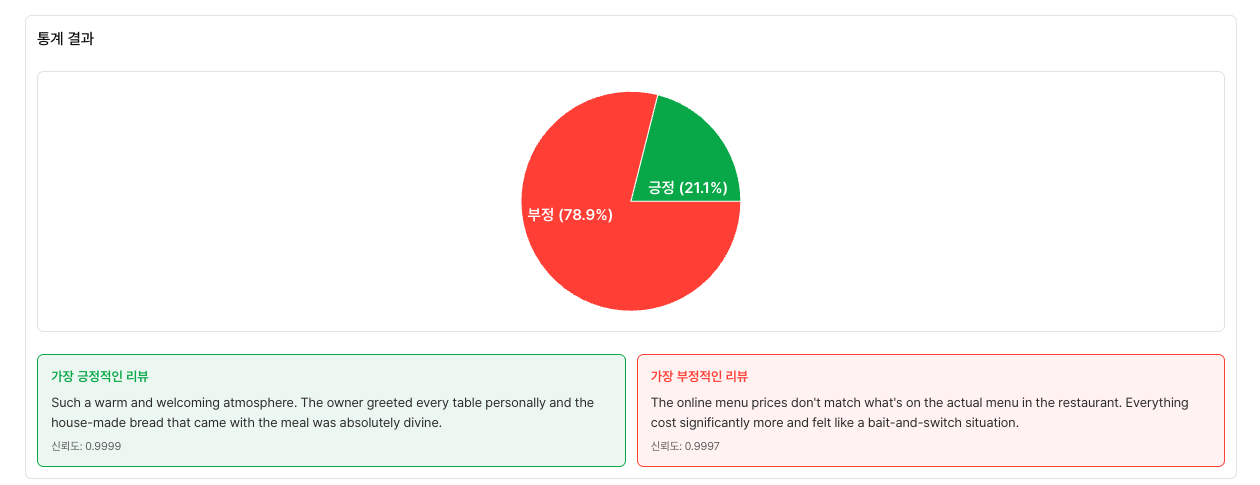
6단계 : 가장 긍정적인 가장 부정적인 리뷰 찾기

긍정 및 부정 점수를 통해 가장 긍정적이고, 가장 부정적인 리뷰 찾아보자.
 # 가장 긍정/부정적인 리뷰 저장
    most_positive_review = None
    most_positive_score = -1
    most_negative_review = None
    most_negative_score = -1

    for sentence in pd_list:
        if is_korean(sentence):
            new_result = korean_analyzer(sentence)
        else:
            new_result = english_analyzer(sentence)

        label = normalize_label(new_result[0]["label"])
        score = new_result[0]["score"]

        if label == "긍정 😊":
            positive_reviews += 1
            if score > most_positive_score:
                most_positive_score = score
                most_positive_review = sentence
        elif label == "중립 😐":
            neutral_reviews += 1
        elif label == "부정 😡":
            negative_reviews += 1
            if most_negative_review is None or score > most_negative_score:
                most_negative_score = score
                most_negative_review = sentence
{analyzedData && (
<div className="mt-[20px] grid grid-cols-2 gap-[10px]">
<div className="border border-[#4CAF50] rounded-[6px] p-[12px] bg-[#f1f8f4]">
<h3 className="text-[12px] font-[600] text-[#4CAF50] mb-[8px]">가장 긍정적인 리뷰</h3>
<p className="text-[12px] text-[#333] leading-[1.5] line-clamp-2">{analyzedData.most_positive_review}</p>
<p className="text-[10px] text-[#666] mt-[6px]">신뢰도: {analyzedData.most_positive_score}</p>
</div>
<div className="border border-[#F44336] rounded-[6px] p-[12px] bg-[#fef4f3]">
<h3 className="text-[12px] font-[600] text-[#F44336] mb-[8px]">가장 부정적인 리뷰</h3>
<p className="text-[12px] text-[#333] leading-[1.5] line-clamp-2">{analyzedData.most_negative_review}</p>
<p className="text-[10px] text-[#666] mt-[6px]">신뢰도: {analyzedData.most_negative_score}</p>
</div>
</div>
)}
'AI > LLM' 카테고리의 다른 글
| 올라마(Ollama) - 개념 및 실습 (0) | 2026.06.06 |
|---|---|
| 허깅 페이스(Hugging Face) - 음성 비서 앱 (7) (0) | 2026.06.05 |
| 허깅 페이스(Hugging Face) - 멀티 모달 (5) (0) | 2026.06.02 |
| 허깅 페이스(Hugging Face) - 트레이너 API (4) (0) | 2026.05.28 |
| 허깅 페이스(Hugging Face) - 데이터 파인튜닝 프로세싱 (3) (0) | 2026.05.28 |